Membership & billing
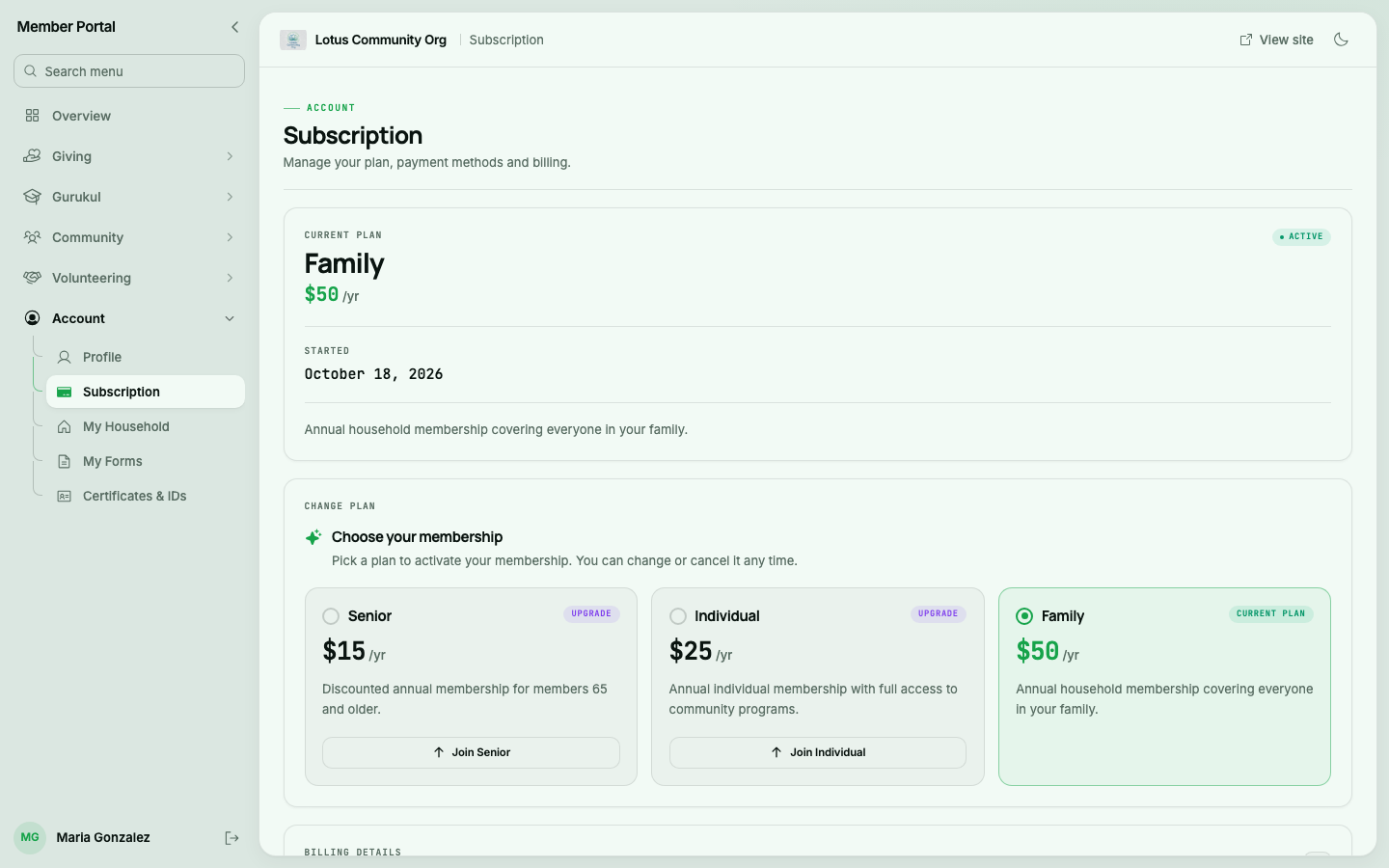
Members manage their own membership — no staff help needed for routine changes. There are two related screens:
- Membership (
/dashboard/membership) — a simpler summary, reached from the Manage Membership button on the overview. - Subscription (
/dashboard/subscription) — the full billing and payment-method area, in the Account menu.
What members can see and do
Section titled “What members can see and do”- Their current plan — name, status (active, free, past due, cancelling, cancelled), price and billing period, and the renewal or cancellation date.
- Change plan — pick another plan. For paid changes, the member sees a real price preview (what’s due today, any credit, or a scheduled change) before confirming. Upgrades can take effect now; downgrades can be scheduled for the renewal date.
- Cancel — cancel at the end of the paid period (they keep access until then) and resume before it takes effect. Cancelling first offers a cheaper plan as an alternative.
- Payment methods — add or change a card, set a default, and remove a card. A member with no card on file sees a prompt to add one.
- Billing history — past payments, with receipts where available.
Members covered by a household membership
Section titled “Members covered by a household membership”If a member is covered by a household plan that someone else pays for, their membership page shows “Covered by household” and hides the plan-change, cancel, and card controls — the household’s primary contact manages it. See Household.
Finishing an unpaid sign-up
Section titled “Finishing an unpaid sign-up”If someone signed up for a paid membership but their payment never completed, the dashboard sends them to a Complete payment screen that finishes the existing sign-up (it never starts a new charge). Until it’s paid, the rest of the dashboard stays locked.
What members cannot do
Section titled “What members cannot do”- They can’t change someone else’s membership.
- Refunds are handled by staff through Stripe, not from this page.