Your public website
Every organization gets a real public website, not just an admin area. You build it from pages made of content blocks, and you control its look from your theme and site chrome (header and footer).
Who can access: the content permissions (Add/Update/Delete pages, posts, media) and the site permissions (theme, header, footer, settings). The Editor role has all of these.
Where: left menu → Content → Pages.
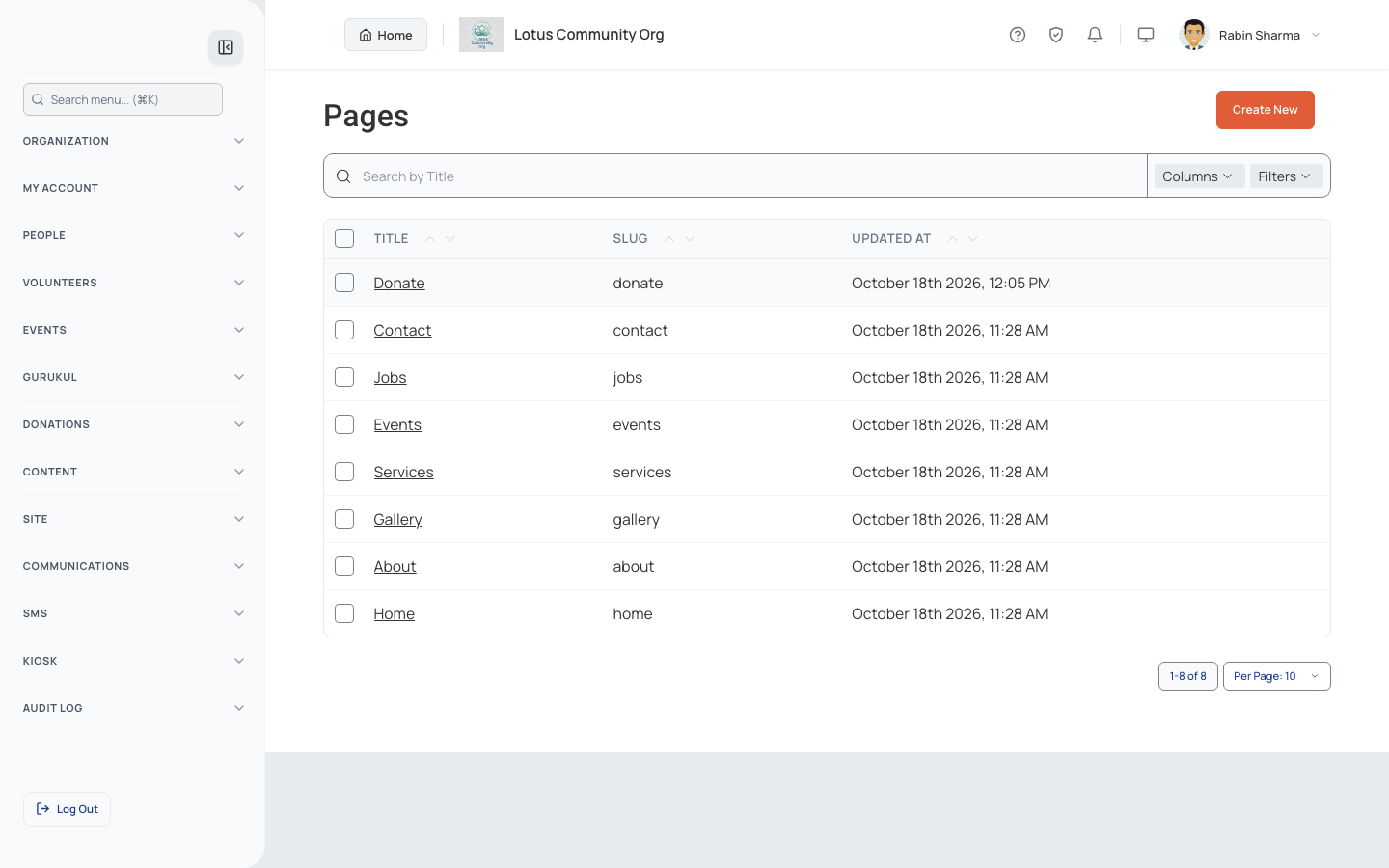
Each page has a hero at the top, a stack of content blocks, and an SEO tab (title, description, social image). You can:
- Start from a page template or build from scratch.
- Save drafts and preview before publishing, and schedule a page to go live later.
- Publish when ready — published pages are public; drafts stay private.
Content blocks
Section titled “Content blocks”Blocks are the building pieces of a page — drag them in and fill them out. There are more than 50, grouped by purpose, including:
- Heroes and banners — headline sections and announcement bars.
- Text and layout — rich text, about sections, FAQs, timelines, documents.
- Features — feature grids, services, mission and values, pricing.
- Social proof — testimonials, statistics, logos, partners.
- People — team and board grids.
- Media — galleries, sliders, videos.
- Events — a calendar, upcoming events, a countdown.
- Giving — donation forms and “other ways to give.”
- Calls to action — newsletter sign-up, contact, social links.
- Blog — recent posts and archives.
Some blocks belong to a module, including events, donations, forms, newsletters, board, the Volunteer call-to-action block, and Custom Code Embeds. If your plan doesn’t include that module, the block won’t show on the public page.
Blog posts
Section titled “Blog posts”Content → Posts holds blog articles, with categories, authors, and the same draft/preview/publish tools as pages. Show them on your site with the Blog posts block.
Where: left menu → Site → Site Themes.
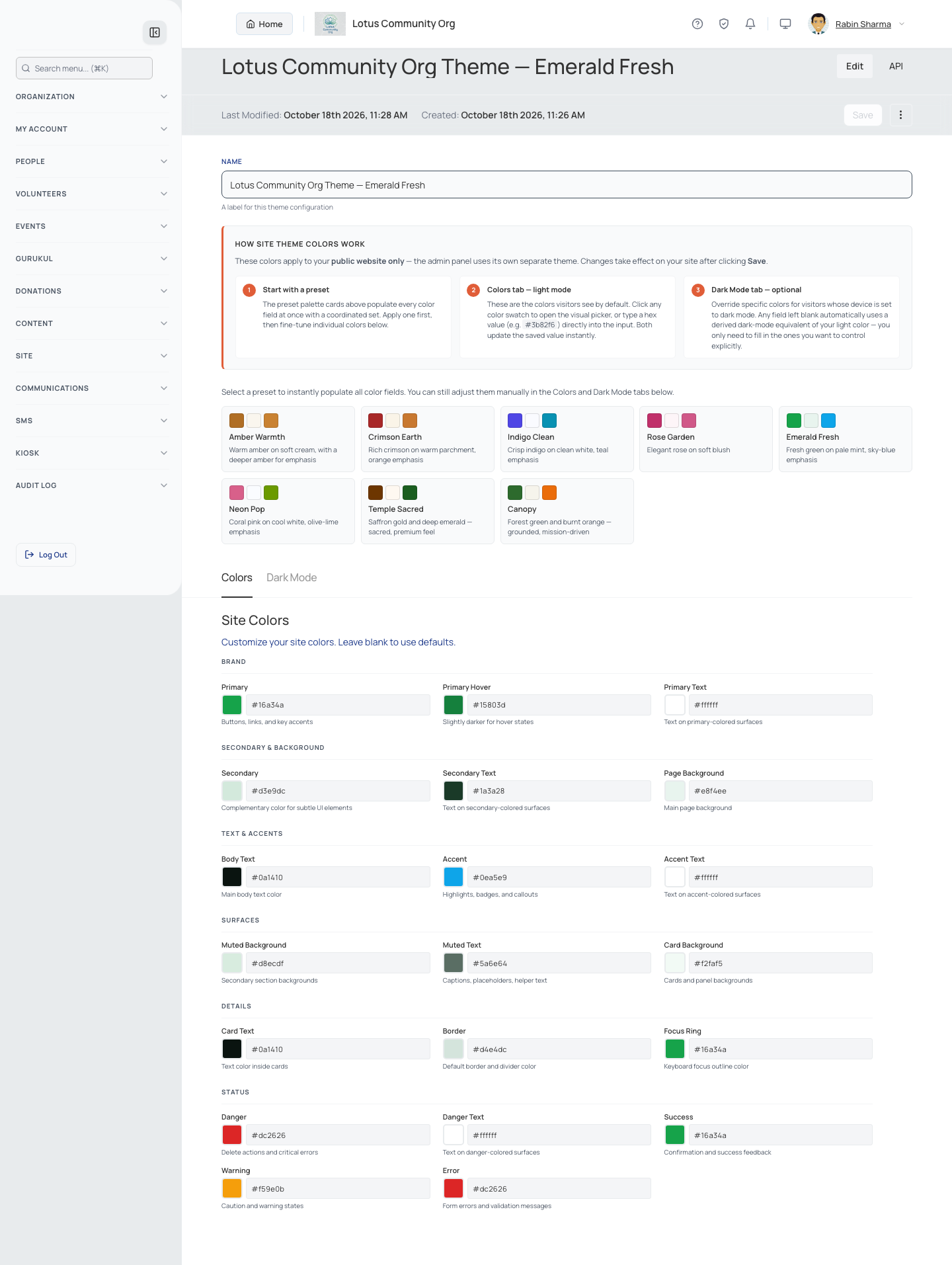
Choose a preset (which sets a coordinated color palette and font) or adjust colors individually, with separate light and dark settings. Your logo and favicon are set on the Organization Info and Site Settings pages.
Header and footer
Section titled “Header and footer”Where: left menu → Site → Header and Site → Footer.
Edit your navigation menu (with optional dropdowns), footer columns and links, and social links. Styling options (logo size, top bar, variants) live in Site Settings.
Media library
Section titled “Media library”Where: left menu → Content → Media.
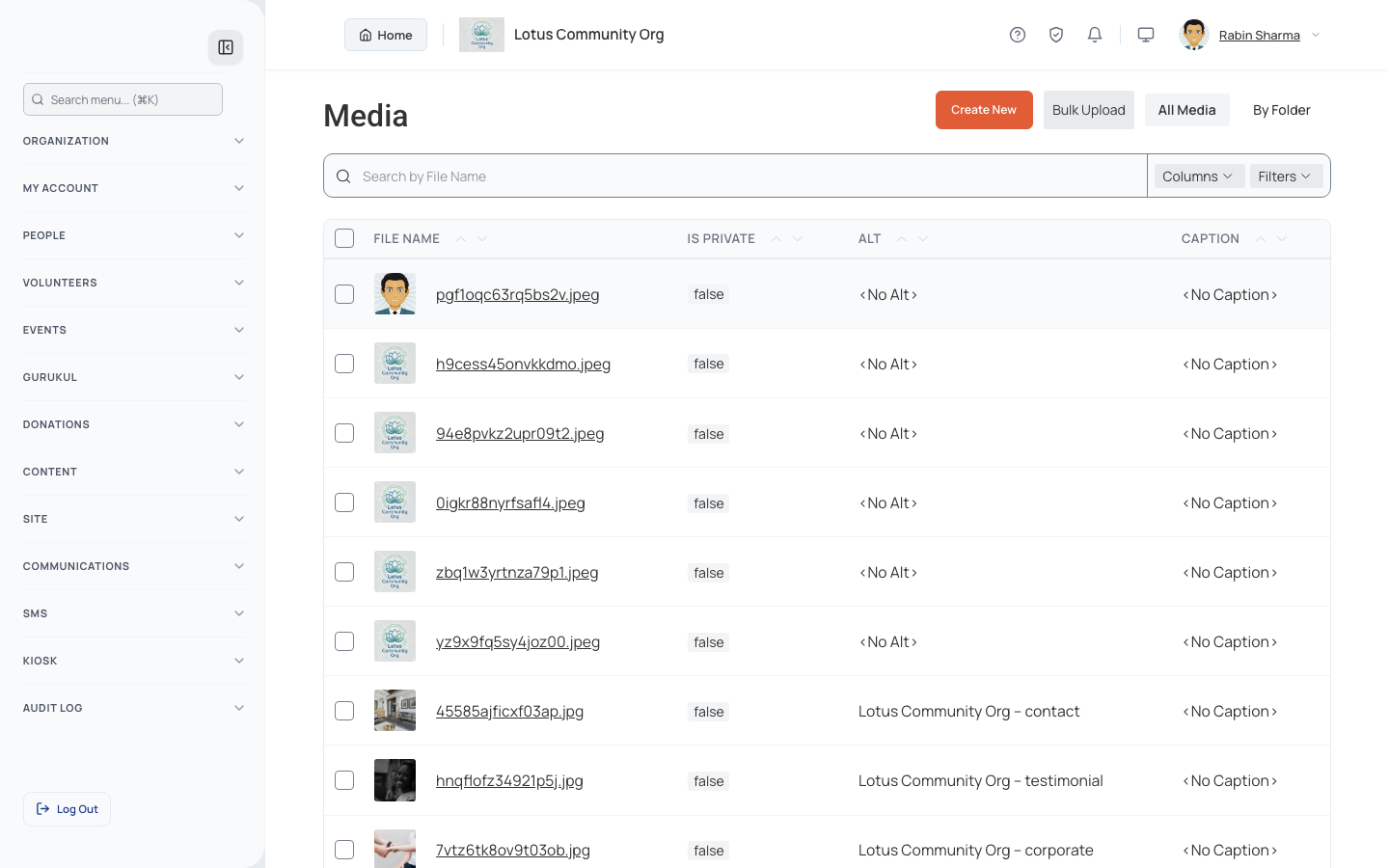
Upload and organize images, videos, and documents to use across your site and emails. When you upload an image into a fixed shape, you’ll be asked to crop it. Your plan may set a storage limit.
Related
Section titled “Related”- Settings reference — the toggles that control your public site.