Settings reference
Site Settings is where you turn features on and off and control how your public site behaves.
Who can access: staff with Manage site settings.
Where: left menu → Site → Site Settings.
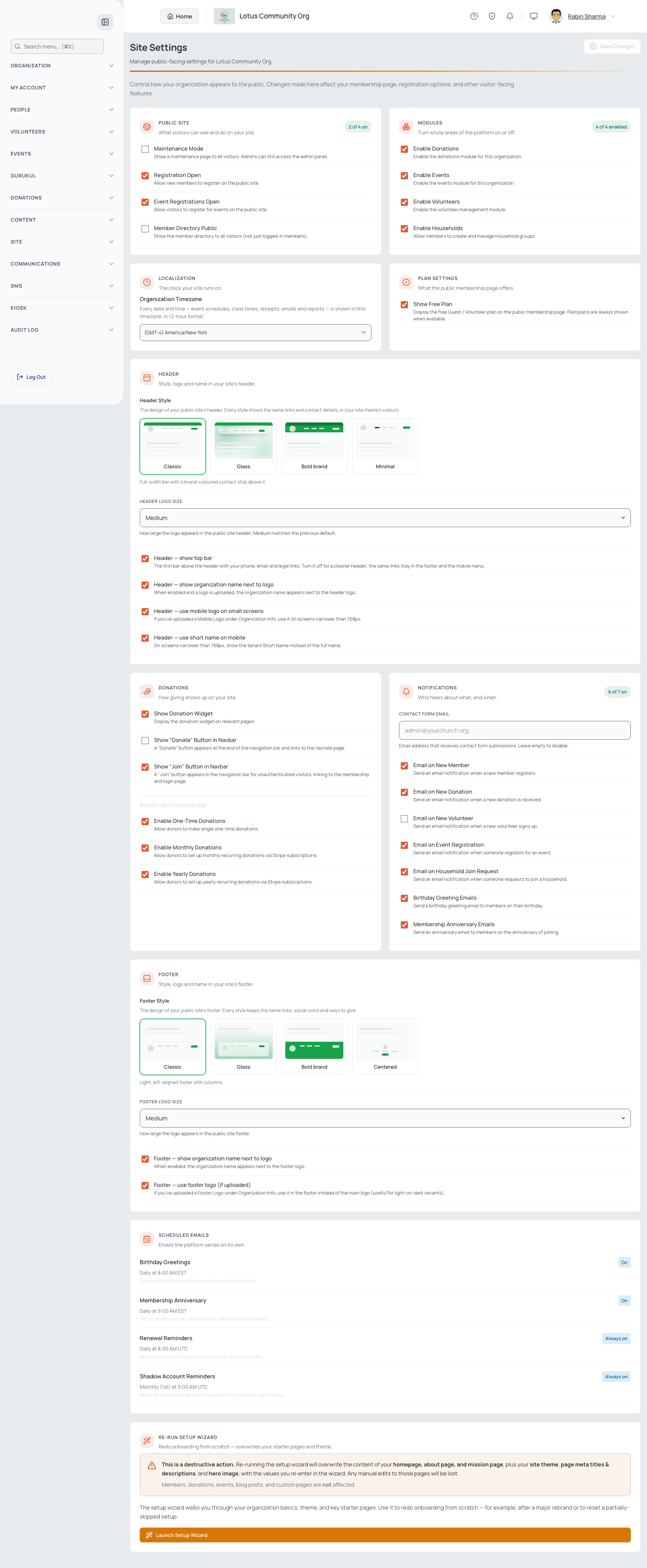
What each group controls
Section titled “What each group controls”- Public site — maintenance mode, whether membership registration is open, whether the donation widget and “Donate”/“Join” buttons show, whether event registrations are open, and whether visitors see a brief loading screen on their first visit (off by default) while images on the page finish loading.
- Branding — header and footer style, logo size, and whether to show your organization name next to the logo.
- Localization — your organization timezone, which drives how dates and times appear across your site, emails, and reports. Times show in 12-hour format.
- Payment settings — whether to show the “cover the processing fee” option on payment forms.
- Modules — switches for the features you use (donations and their types, events, volunteers, households, forms), plus class-related settings like the liability waiver, holiday calendar, and a volunteer-hour fee discount.
- Notifications — the email address contact-form messages go to, and which staff notification emails are sent (new member, new donation, event registration, and so on). Also text-message settings and daily caps.
- SEO — your site name, default description, favicon, and default social share image.
- Integrations — Google Analytics and cookie-consent options.
- Alternative payment methods — show instructions for giving by Zelle, Venmo, check, and others on your public site (informational only — these don’t run through Stripe).
- Compliance — upload a code of conduct document linked in member emails.