In-person giving (Kiosk)
The Kiosk lets staff and volunteers charge cards in person — for donations and walk-in event registrations — using a physical Stripe card reader. The donor taps their card; the gift lands in your donation records automatically.
Who can access: Operate kiosk to run charges; Manage kiosk readers to set up devices. Part of the Kiosk module.
Where: left menu → Kiosk.
What you need
Section titled “What you need”- A connected Stripe account with in-person payments turned on. (The account owner accepts Stripe’s in-person terms in their own Stripe dashboard.)
- A supported card reader — a BBPOS WisePOS E or Stripe Reader S700 — bought directly from Stripe.
- A Location created under Kiosk → Locations, and a reader paired from the Kiosk → Run charge page.
The in-app Setup Guide (Kiosk → Setup guide) walks through buying and pairing a reader.
Running a charge
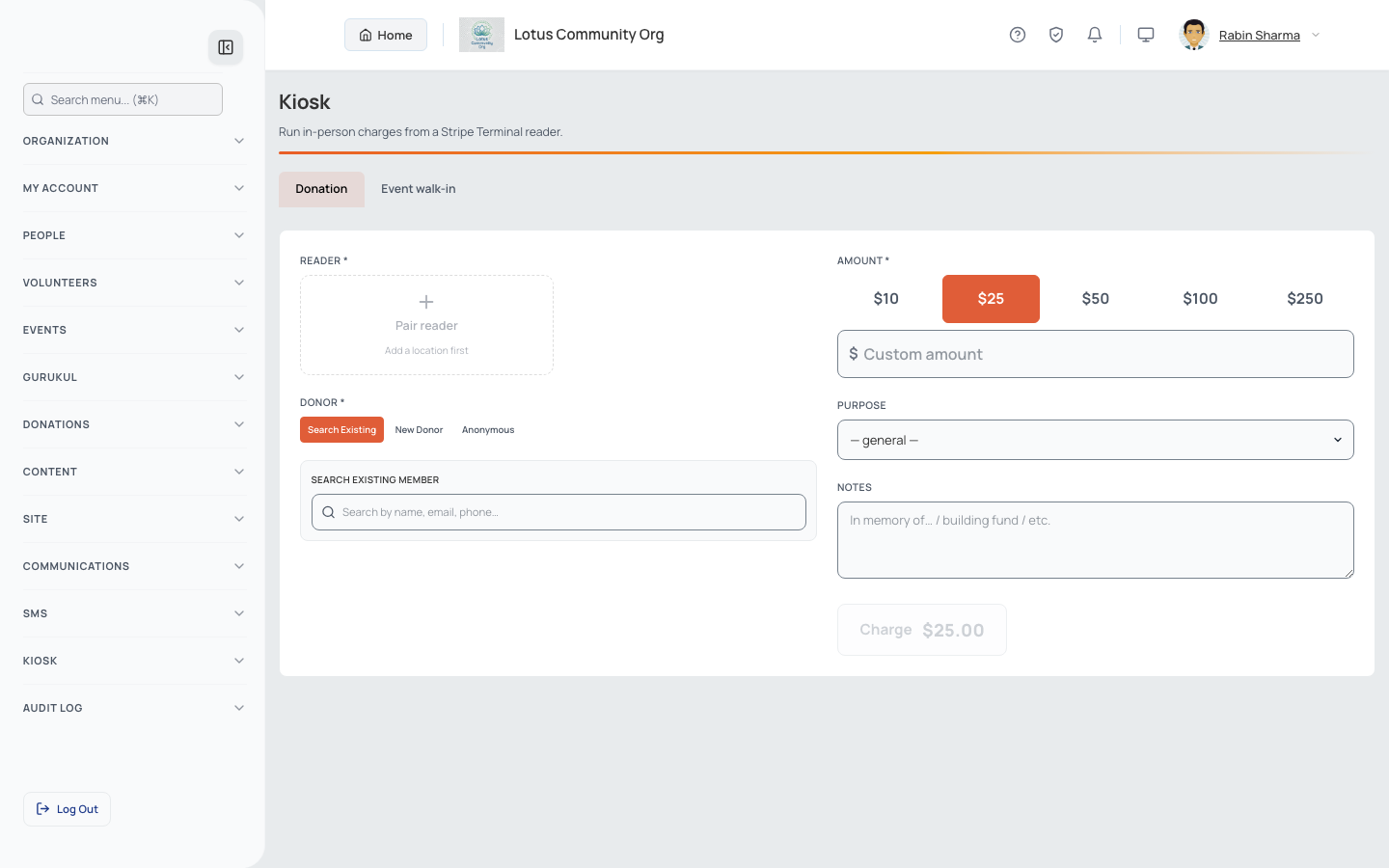
Section titled “Running a charge”- Open Kiosk → Run charge and choose the Donation or Event walk-in tab.
- Use the reader picker to pair or select your card reader, if you haven’t already.
- Pick an amount (or a quick preset).
- Choose the donor (search for them, or take it anonymously), and a purpose if you like.
- Select Charge. The reader shows the amount; the donor taps their card.
- A green check confirms success. The gift is recorded automatically — see it under Kiosk → Transactions.
Limitations
Section titled “Limitations”- Cash and check are not taken at the kiosk — log those under Add Donation.
- Refunds are done from the admin donation tools / Stripe, not at the reader.
- Tap-to-pay on a phone is not supported; a physical reader is required.
- US dollars only.