Connecting Stripe (accept payments)
Sevabase uses Stripe to process every online payment — donations, membership dues, event fees, and class fees. The money goes directly to your organization’s own bank account through Stripe; Sevabase never holds your funds.
Before anything can be charged, you must connect your Stripe account. This is the single most important setup step for any organization that takes money online.
Who can do this: staff with the Manage Stripe Connect permission (Admins have it).
Where: left menu → Organization → Stripe Dashboard.
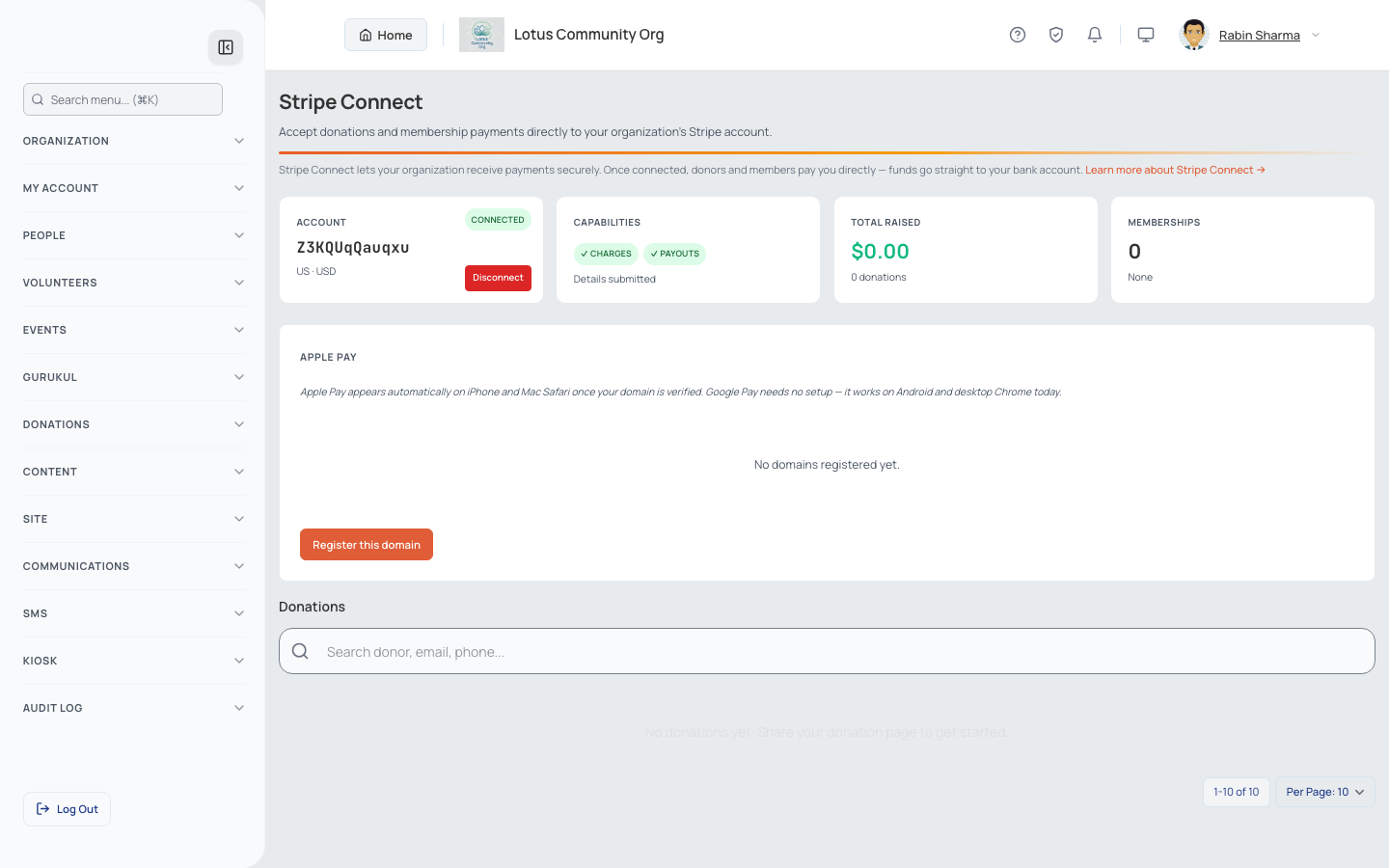
How to connect
Section titled “How to connect”- Open Stripe Dashboard and select Connect Stripe Account.
- You are taken to Stripe’s secure setup. Sign in to an existing Stripe account or create a new one for your organization.
- Provide the details Stripe asks for — your organization, bank account, and the identity verification Stripe requires of every nonprofit.
- When Stripe is done, you are returned to your Stripe Dashboard in Sevabase. The status updates to show charges are enabled.
Test mode vs. live mode
Section titled “Test mode vs. live mode”Your account runs in test mode until your Stripe account is fully approved and switched to live. In test mode you can try the payment screens without real charges. Real donations only work once Stripe shows your account is active and charges are enabled.
What breaks if you skip this
Section titled “What breaks if you skip this”Until Stripe is connected and charges are enabled:
- Your public donation form disables its submit button and cannot take gifts.
- Membership sign-ups that require payment are blocked.
- Paid events and class fees cannot be collected.
- The in-person card reader (Kiosk) cannot charge.
Free memberships, free events, and cash/check donations you log by hand still work without Stripe.
Payment methods your donors can use
Section titled “Payment methods your donors can use”Once connected, your payment forms automatically offer whatever your Stripe account supports — typically card, Apple Pay, Google Pay, and bank transfer (ACH). Google Pay works right away. Apple Pay needs your website domain registered once, from a card on the same Stripe Dashboard page.
Limitations
Section titled “Limitations”- Refunds are done in your Stripe dashboard, not inside Sevabase. Log in to Stripe to issue a refund; the record updates in Sevabase through Stripe.
- All payments are in US dollars.
- Disconnecting in Sevabase stops new charges but does not close your Stripe account.