The setup checklist
When you sign in as an Admin, the first menu item is Getting Started. It is a checklist that walks you through setting up your organization. Some steps are detected automatically and get a green Auto-detected check once you finish them; others you tick off yourself.
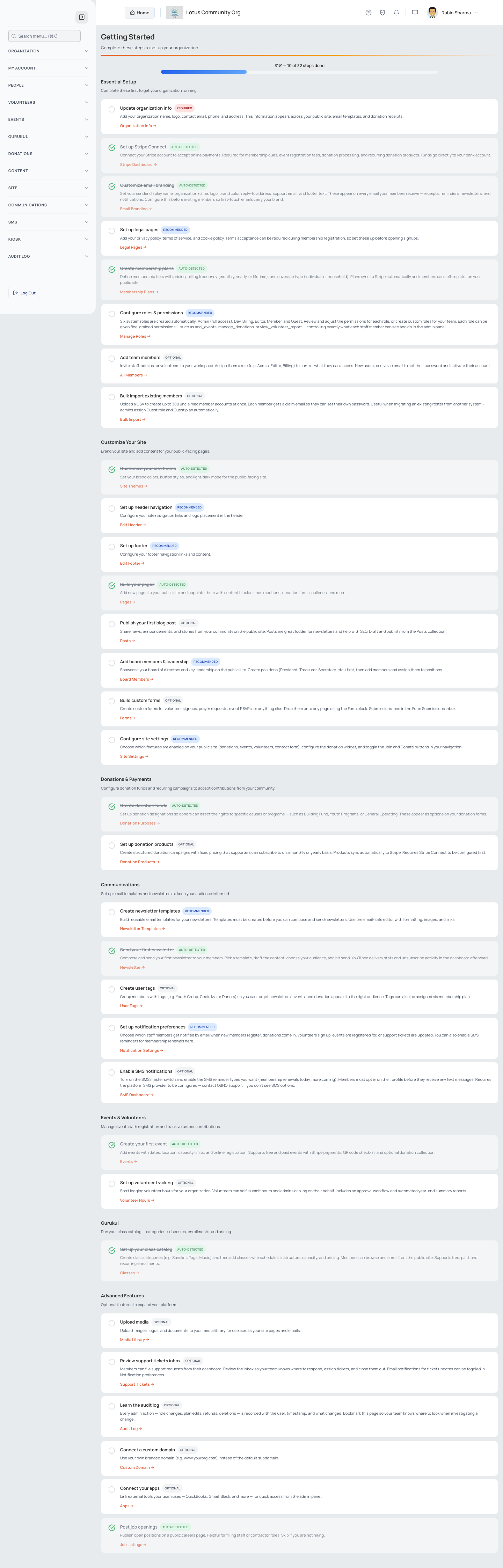
Work down the list. You do not have to finish everything before you start using Sevabase, but the Required steps below should come first.
What each badge means
Section titled “What each badge means”- Required — the platform will not work properly without it.
- Recommended — you will want this before you open to members or the public.
- Optional — set it up when you need it.
Essential setup (do these first)
Section titled “Essential setup (do these first)”| Step | Why it matters | If you skip it |
|---|---|---|
| Organization info · Required | Your name, logo, contact details and tax information appear on your site, emails, and donation receipts. | Emails and receipts look unbranded and may be missing tax details. |
| Connect Stripe · Required to take payments | Lets you accept any online payment — dues, event fees, donations. | No online payments work at all until this is done. See Connecting Stripe. |
| Email branding · Recommended | Sets the name and look of every email your members receive. | Emails go out with plain defaults. |
| Legal pages · Recommended | Privacy, cookie, and terms pages. Terms must exist before members can agree to them at sign-up. | Members cannot accept terms during registration. |
| Membership plans · Recommended | The tiers people can join and pay for. | Members cannot sign up for a paid membership. |
| Roles & permissions · Recommended | Controls who on your team can do what. | Everyone you add has either full or no access. |
| Add team members · Optional | Invite staff and volunteers. | You are the only person with access. |
Customize your site
Section titled “Customize your site”Set your theme (colors and fonts), your header and footer navigation, and build your pages. Publish a few pages so your public website is not empty.
Turn on the features you use
Section titled “Turn on the features you use”Depending on your plan, you can also set up:
- Donation funds and products
- Newsletters and text messaging
- Events and volunteer tracking
- Classes (Gurukul)
Which steps complete themselves
Section titled “Which steps complete themselves”Many steps turn green on their own once you have done the underlying action — for example, once you create your first event, the “Create your first event” step is marked Auto-detected and cannot be unchecked. Steps that can’t be detected (like “Set up footer”) you tick off yourself; your choices are saved to your organization.
Next step
Section titled “Next step”Start with Organization profile & branding.