Members & people
Sevabase keeps one record per person, no matter how they first showed up — whether they joined as a member, gave a donation, registered for an event, or were added by staff.
Who can access: viewing needs Get users; adding, editing, and deleting have their own permissions. Admins have all of them.
Where: left menu → People → All Members.
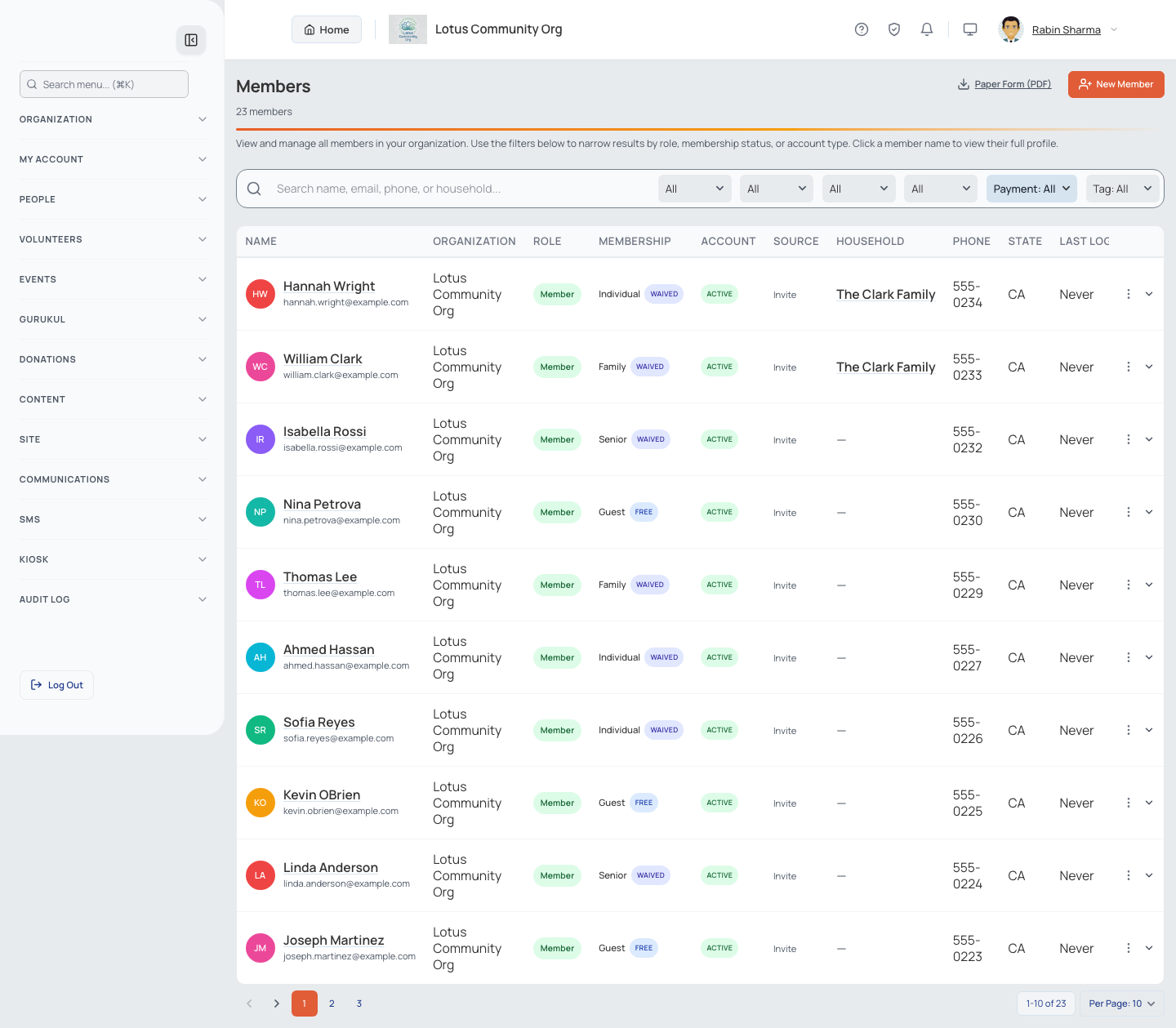
The members list
Section titled “The members list”The list shows everyone in your organization. You can:
- Search by name, email, or phone.
- Filter by role, membership status, account type, tag, or SMS opt-in status (All / Opted-in / Not opted-in / Opted-out).
- Select a person to open their full profile.
- Add a person with New Member, or edit, block, and remove people from the list.
A small badge beside each member’s phone number shows their texting status — SMS on, SMS off, or SMS opted-out — with a tooltip naming how or when that happened.
Recording SMS consent in bulk
Section titled “Recording SMS consent in bulk”If you already have written or verbal consent for a group of members (for example, from a paper sign-up sheet at an event), filter the list down to them and select Mark SMS opted-in. After you confirm the consent statement, Sevabase records opt-in for everyone in that view who has a phone on file and isn’t already opted in or opted out — anyone who previously replied STOP is never re-opted-in this way. See Text messaging for how opt-in is used when sending.
Account types
Section titled “Account types”Not everyone with a record can sign in. A person’s record is one of these:
- Active member — has an email and password and can sign in.
- Unclaimed account — created for someone (by a donation, an import, or staff) who hasn’t set a password yet. They get a link to claim their account and set one.
- Managed family member — a child, elder, or dependent added by name only, with no login. They are part of a household but never sign in. This is by design.
When an unclaimed person later claims their account, all their past history — donations, event registrations — stays attached to them.
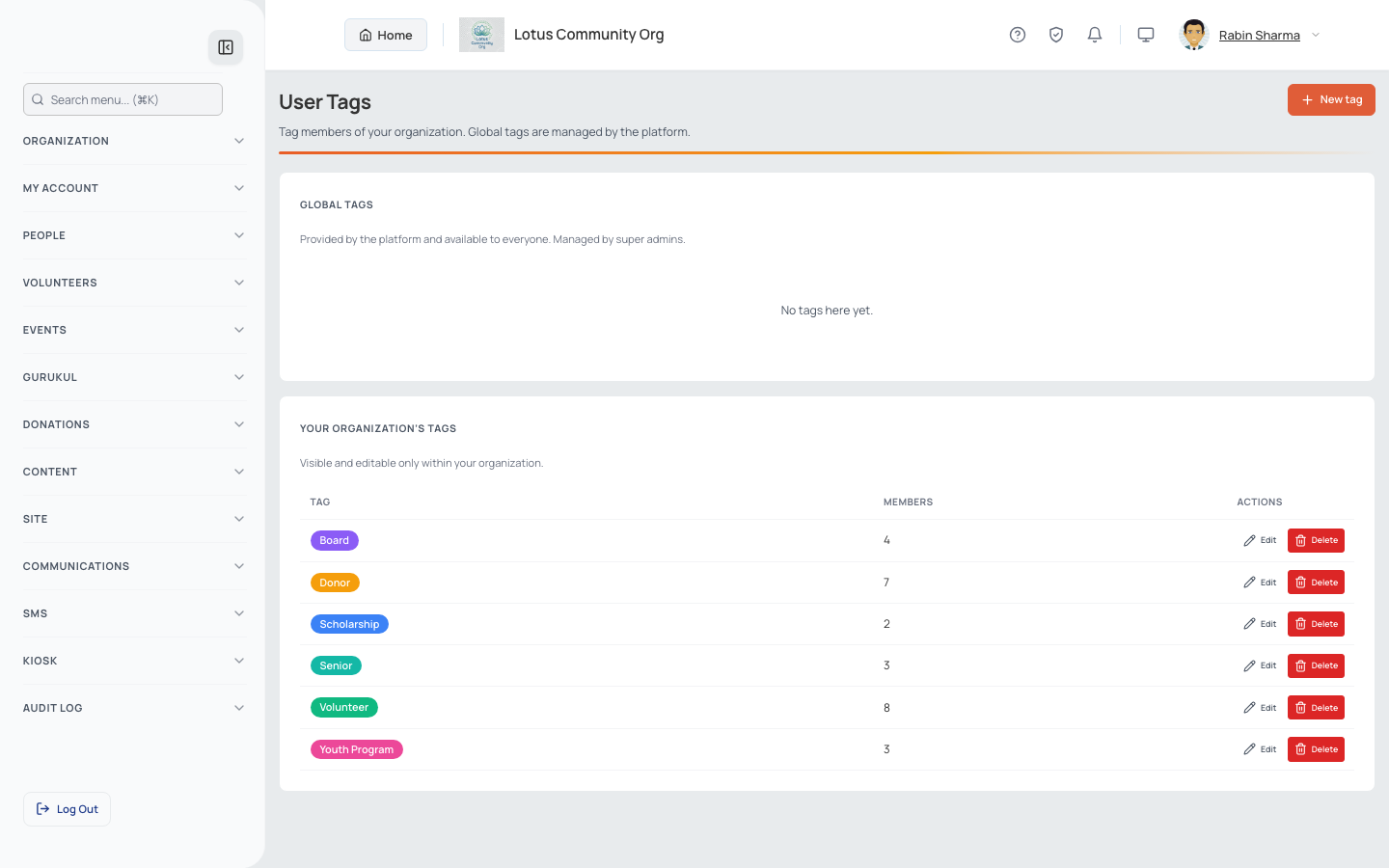
Use tags (like Board, Youth, or Volunteer) to label and group people. Tags help you filter the member list and target newsletters. Manage them under People → User Tags.
The member’s own view
Section titled “The member’s own view”Members manage their own contact details, giving, and household from the member portal. Staff manage everyone from the admin area.
Limitations
Section titled “Limitations”- A member can belong to one organization and cannot change which one.
- Removing a managed family member from a household leaves a record with no household and no login; the remove dialog warns you before this happens.