Events
Create events people can find and register for on your public site — free or paid, one-off or recurring.
Who can access: staff with the event permissions (Add/Edit/Delete events, View event report). Part of the Events module. Members see their own registrations in the portal.
Where: left menu → Events.
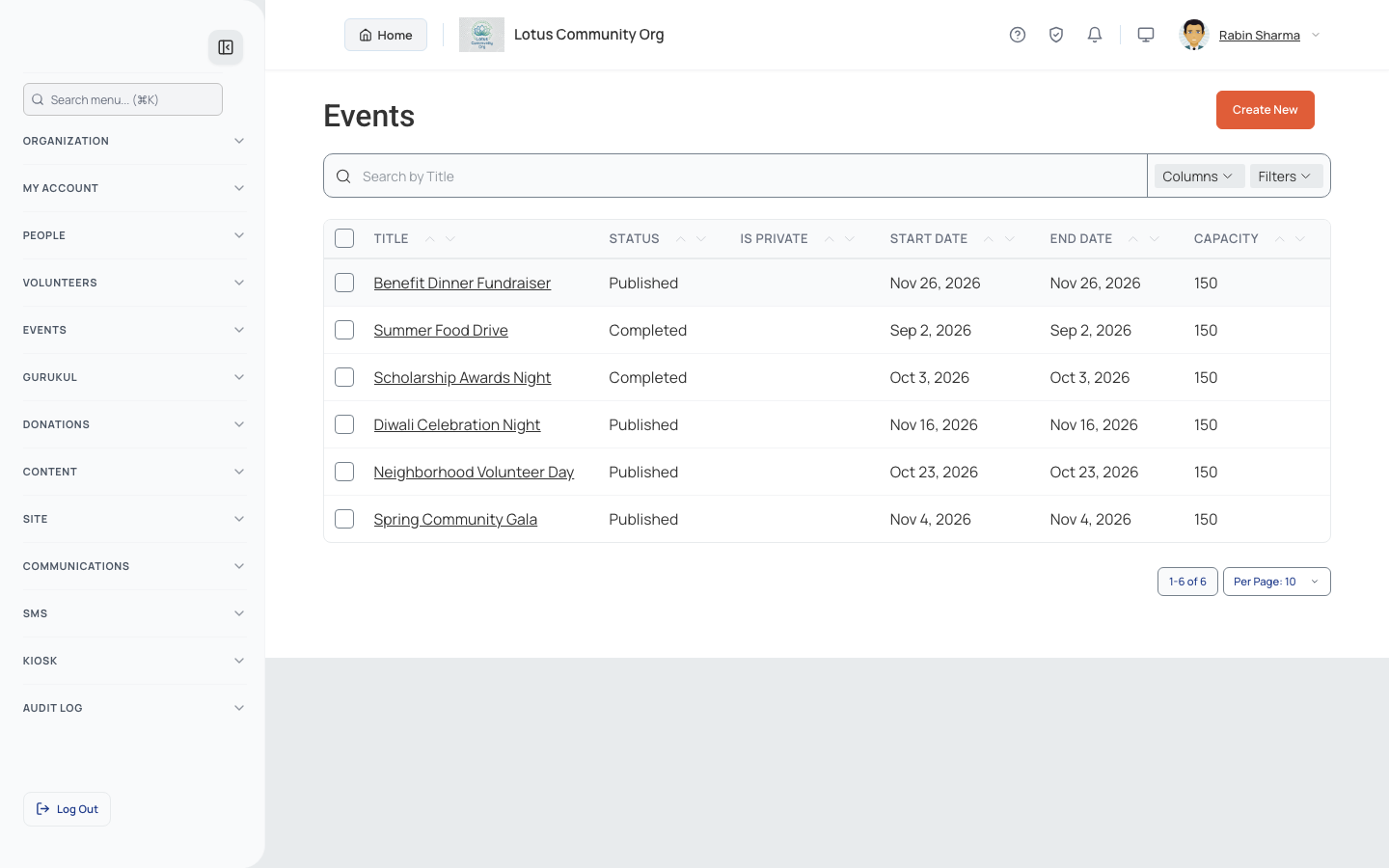
Creating an event
Section titled “Creating an event”Open Events → All Events → Create and fill in:
- Title, description, and image.
- Date and time — a single day, a multi-day span, or a recurring series (daily, weekly, monthly, and so on).
- Location — a physical place or a virtual link.
- Free or paid — uncheck Is free to set a price (entered in cents; needs Stripe).
- Capacity — a limit on attendees, or leave it open.
- Registration window — when registration opens and closes.
- Private or public — a private event stays off your public calendar but can still be shared by link.
- Allow donations — let attendees add a gift during registration.
Set the status to Published to make it public. Draft events stay hidden.
How people register
Section titled “How people register”Published events appear on your public Events page and calendar. Attendees register (and pay, for paid events), and get a confirmation email with their check-in code. People who aren’t members yet get a record created automatically, which connects to them if they join later.
Putting events on your website
Section titled “Putting events on your website”Add event blocks to any page — a calendar, a list of upcoming events, or a countdown to the next one. See Your public website.
Calendar view
Section titled “Calendar view”Events → Calendar shows all your events laid out by month, so you can spot gaps and scheduling conflicts at a glance.
Managing an event’s registrations
Section titled “Managing an event’s registrations”Open any event from All Events or the Event Report to see its Attendees and Revenue tabs — the attendee list and the money collected for that event.
Reports
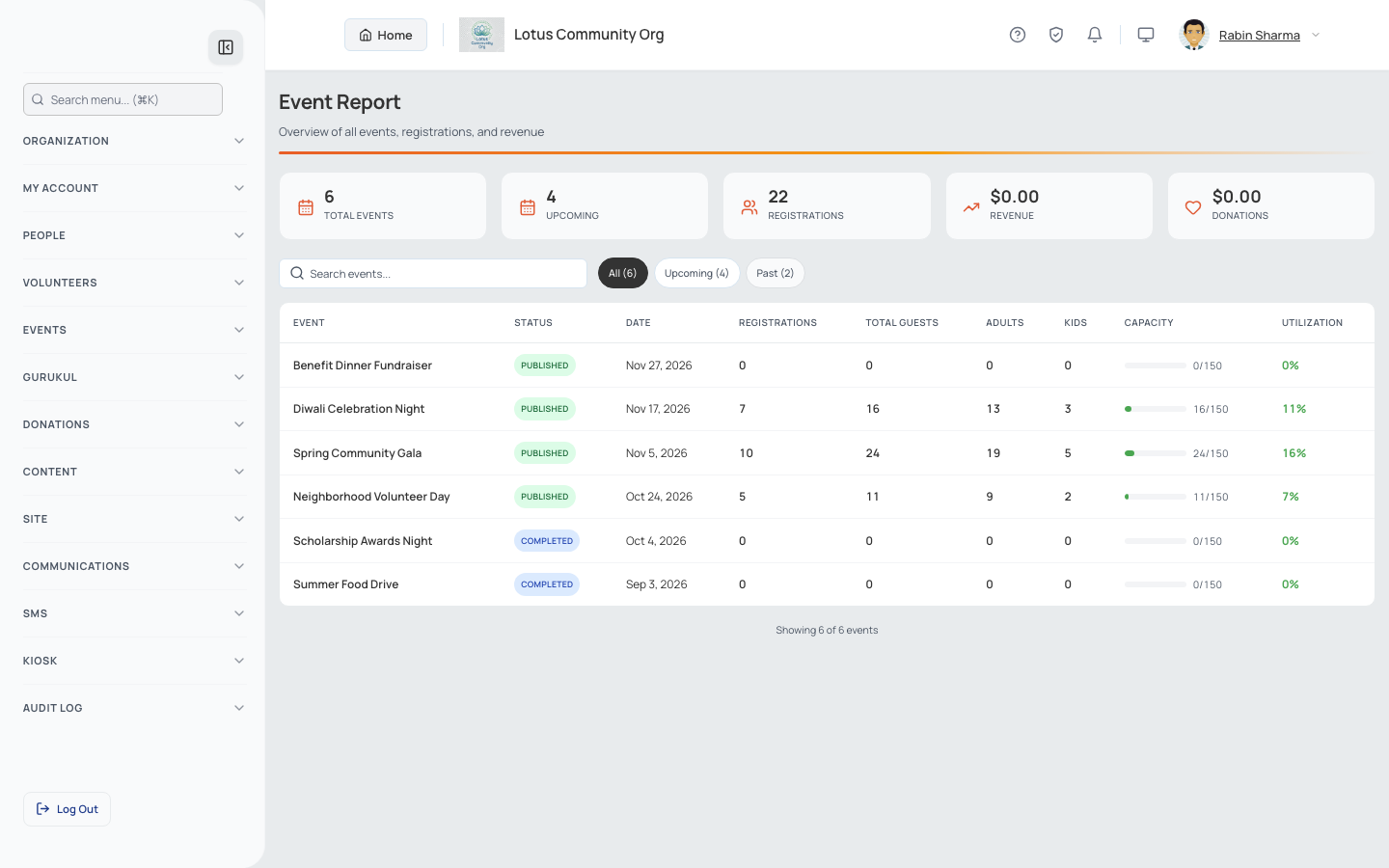
Section titled “Reports”Events → Event Report shows registrations and attendance across your events.
Related
Section titled “Related”Limitations
Section titled “Limitations”- There is no built-in cancel/refund for a registration inside Sevabase — handle refunds in Stripe.
- Event status is Draft, Published, Cancelled, or Completed — there’s no waitlist for events (waitlists are a Classes feature).
- Event times are entered in a fixed US-Eastern style; see Troubleshooting if times look off.