Email branding
Email branding controls the sender identity, logo, colors, footer, and overall look of every email you send — both the automatic messages (receipts, confirmations, reminders) and the newsletters you compose. Set it once and it applies everywhere.
Who can access: the Email Branding permission.
Where: left menu → Communications → Email Branding (opens your organization’s single branding record).
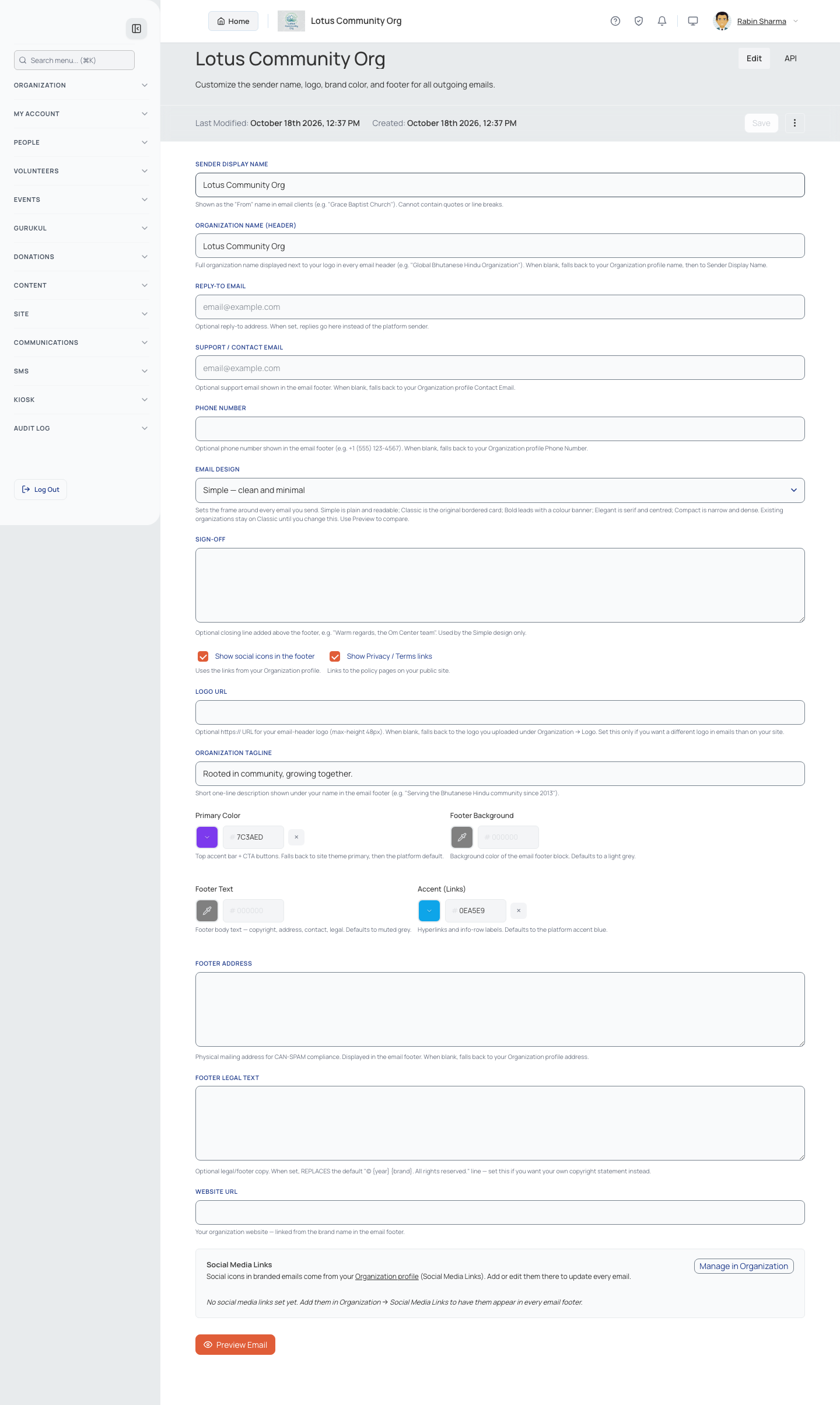
Edit your branding
Section titled “Edit your branding”- Open Communications → Email Branding.
- Fill in the fields in each section below.
- Click Preview to open a sample email in a new tab and check how it looks.
- Click Save.
Everything on this page applies to both your automatic emails and your newsletters, so a single change updates every message your members and donors receive.
Sender identity
Section titled “Sender identity”- Sender Display Name — the “From” name people see in their inbox. Use your organization’s name. Don’t include quotation marks or line breaks.
- Organization Name (Header) — the name shown next to your logo at the top of the email. If you leave it blank, your organization name is used.
- Reply-To Email — where replies go when someone answers an email.
- Support / Contact Email — shown in the footer so members can reach you.
- Phone Number — shown in the footer.
Shell style
Section titled “Shell style”- Email Design — the overall look of the email shell. Choose Simple, Classic, Bold, Elegant, or Compact. New organizations default to Simple; older ones default to Classic.
- Sign-off — the closing line (for example, “Warm regards”). This appears only with the Simple design.
- Show social icons in the footer — turns on the social links from your Organization profile.
- Show Privacy / Terms links — adds links to your privacy policy and terms in the footer.
Brand identity
Section titled “Brand identity”- Logo URL — an optional
httpslink to your logo image. Leave it blank to use the logo from your Organization profile. - Organization Tagline — a short line shown under your name.
Brand colors
Section titled “Brand colors”Each color is a 6-digit hex value (for example 1A73E8) and has a color picker.
- Primary Color — the accent bar at the top and the color of buttons.
- Footer Background — the background color of the footer area.
- Footer Text — the text color inside the footer.
- Accent (Links) — the color of links in the body.
Footer content
Section titled “Footer content”- Footer Address — your mailing address. This is required by anti-spam law and must appear on bulk email. If you leave it blank, the address from your Organization profile is used.
- Footer Legal Text — replaces the default ”© year …” copyright line when you set it.
- Website URL — your website link, shown in the footer.
- Social Media Links — a read-only panel showing the links that will appear. You edit these on your Organization profile, not here.