Email templates
Every automatic email your organization sends — receipts, confirmations, reminders, invites, and more — has a built-in default. You only change one when you choose to Customize it; until then, members receive the built-in version.
Who can access: the Email Branding permission.
Where: left menu → Communications → Email Templates (the catalog).
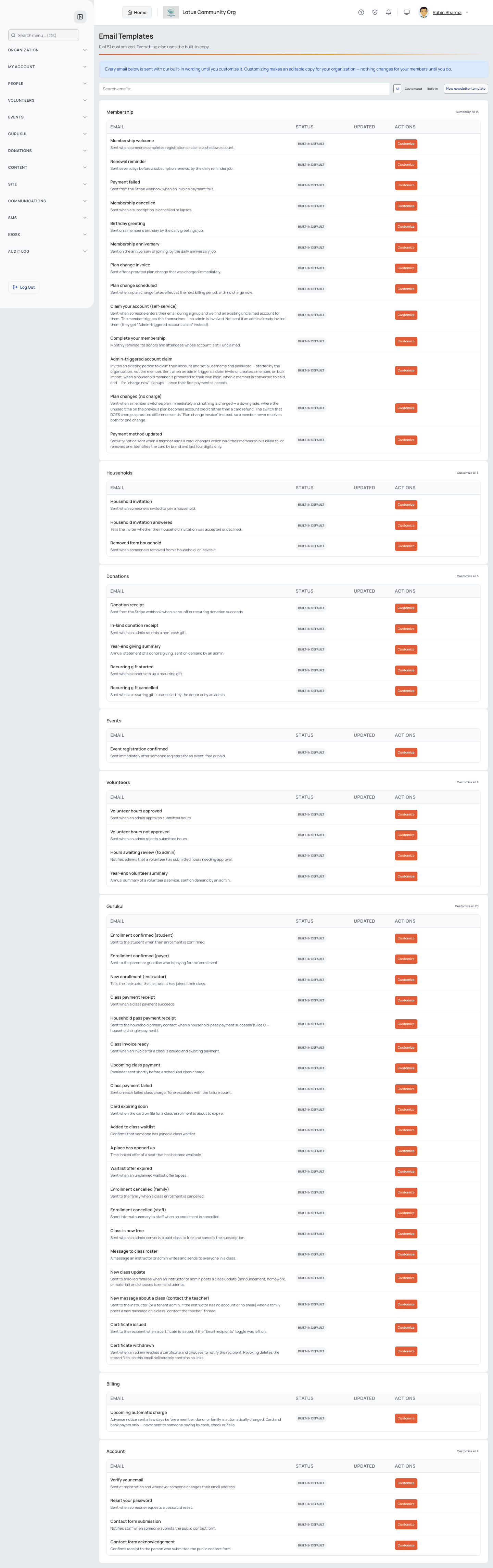
The catalog
Section titled “The catalog”The catalog lists about 49 customizable templates, grouped by area — Membership, Donations, Events, Volunteers, Classes, and Account. Each template shows a status badge:
- Built-in — using the platform’s default. Members get this until you customize it.
- Customized — you’ve made an editable copy with your own wording.
- Inactive — you have a customized copy, but it’s turned off, so the built-in version is used.
Customize a template
Section titled “Customize a template”- Open Communications → Email Templates.
- Find the template you want to change.
- Click Customize. This creates an editable copy and makes it active immediately.
- Click Edit to open the editor.
Edit the content
Section titled “Edit the content”The editor has these fields:
- Subject — required. Supports
{{variables}}(see below). - Preview Text — the preheader line most inboxes show next to the subject.
- Body — a rich-text editor with email-safe formatting: bold, italic, headings, lists, links, and images.
- Email Design — override the shell look for this one email, or leave it on Use organization default to follow your email branding.
- Active — turn this off to fall back to the built-in version while keeping your edits for later.
Click Save when you’re done.
Variables
Section titled “Variables”Placeholders like {{firstName}} pull in real values when the email is sent.
- Insert them from the editor’s Variable block, which drops in a chip, or type the token directly as
{{token}}. - A variable reference panel shows which variables are available for the template you’re editing.
- Security emails require their link token. For example, a password-reset email must keep its reset link — the editor won’t let you save if you remove it.
- Unknown variables are rejected when you save, so a typo can’t ship a broken email.
Preview and test
Section titled “Preview and test”- Preview renders the email with sample data. A dropdown lets you compare the five email designs side by side.
- Send test emails a
[TEST]copy to you (or to an address you enter), filled with sample values. Testing is optional.
Other catalog actions
Section titled “Other catalog actions”- Activate / Deactivate — switch a customized template on or off without losing your edits.
- Reset to built-in — discard your customization and go back to the default.
- Delete — removes your copy, which reverts the template to the built-in version.
Locked pieces
Section titled “Locked pieces”Some emails contain system-generated blocks you can move or remove, but not reword. Examples:
- The IRS tax statement on donation receipts.
- The event QR code on event confirmations.
These protect compliance text and functional elements from accidental edits.